Bitwarden is an open-source password manager with apps for all platforms and a browser extension.
Vaultwarden is an unofficial, lightweight Bitwarden-compatible server written in Rust.
Why I decided to check it ?
I have been a Bitwarden user for years an using their membership, but a few recent signals made me start evaluating alternatives. According to a Fast Company report from May 2026:
Longtime CEO Michael Crandell moved to an advisory role in February 2026 with no public announcement. His replacement, Michael Sullivan, touts his experience with "all facets of mergers and acquisitions" on his LinkedIn page, including experience working with leading private equity firms.
CFO Stephen Morrison also left Bitwarden in April, replaced by former InVision CEO Michael Shenkman.
The page for its personal password manager no longer includes the phrase "Always free." [...] Bitwarden made this change in mid-April, according to the Internet Archive.
The "Inclusion" value was also removed from the company website around the same period. A Bitwarden employee later called the pricing-page change an oversight on Reddit and the wording was restored.
This is unconfirmed and early information, and the product itself has not changed. Still, it is enough reason to keep an exit option ready: self-hosting Vaultwarden gives full data compatibility with the official clients, without dependency on the company's future business decisions.
Pros and cons of self-hosting
| Pros | Cons |
|---|---|
| Full control over your data | You manage backups and uptime |
| No subscription cost | Requires a public HTTPS endpoint |
| Works on a cheap VPS or Raspberry Pi | Admin responsibility |
| Same data format as official Bitwarden, easy import/export | No vendor support, only community |
Installation
HTTPS with ngrok
Vaultwarden requires HTTPS. Without it, account creation is blocked by the browser because Vaultwarden refuses to serve the Web Vault over plain HTTP. The simplest way to get a valid HTTPS endpoint for testing is ngrok.
ngrok http 8000ngrok creates a secure tunnel from a public URL with a valid TLS certificate to your local port 8000. Copy the generated https:// URL, you will need it for the DOMAIN environment variable in the next step.
This is fine for evaluation. For long-term use, run Vaultwarden behind a real domain with a reverse proxy such as Caddy or Traefik, both of which handle Let's Encrypt automatically.
Docker Compose
services:
   vaultwarden:
    image: vaultwarden/server:latest
    container_name: vaultwarden
    restart: unless-stopped
    environment:
      DOMAIN: "https://your-ngrok-url.ngrok-free.app"
      ADMIN_TOKEN: 'your-admin-token'
    volumes:
      - ./vw-data/:/data/
    ports:
      - "8000:80"
Set DOMAIN to the ngrok URL from the previous step. Generate a strong ADMIN_TOKEN (for example with openssl rand -base64 48). Anyone who knows it can manage all users on your instance.
Start the stack:
docker compose up -dWeb interface
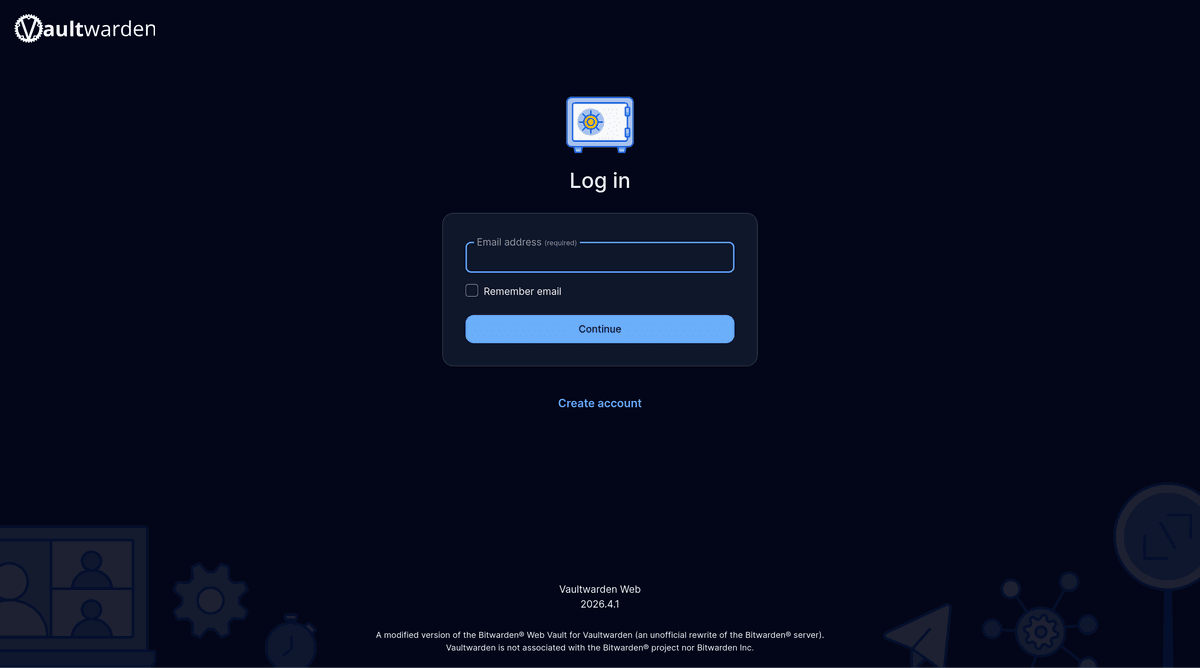
Open the ngrok URL in your browser. To create an account, click Create account and fill in your email, name, and master password. The master password is the only thing protecting your vault. There is no recovery if you lose it.
Vault
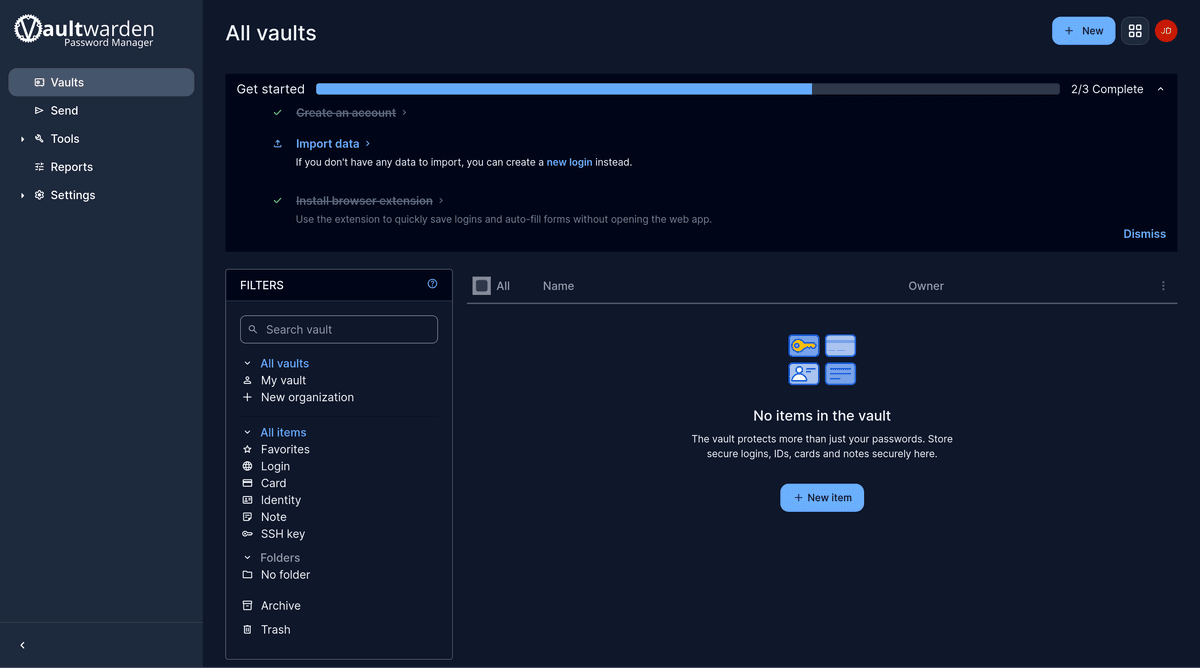
After login you get the standard Bitwarden vault UI. You can create logins, secure notes, cards, and identities, and organize them into collections. Existing Bitwarden users can import their data via Tools > Import data using the JSON export from their old account.
Storage
Vaultwarden uses SQLite as its database backend. All data is stored in ./vw-data/ on the host, which makes backups straightforward: stop the container, copy the directory, start it again. For continuous backups, vw-data/db.sqlite3 can be dumped with the SQLite .backup command while the container runs.
Admin panel
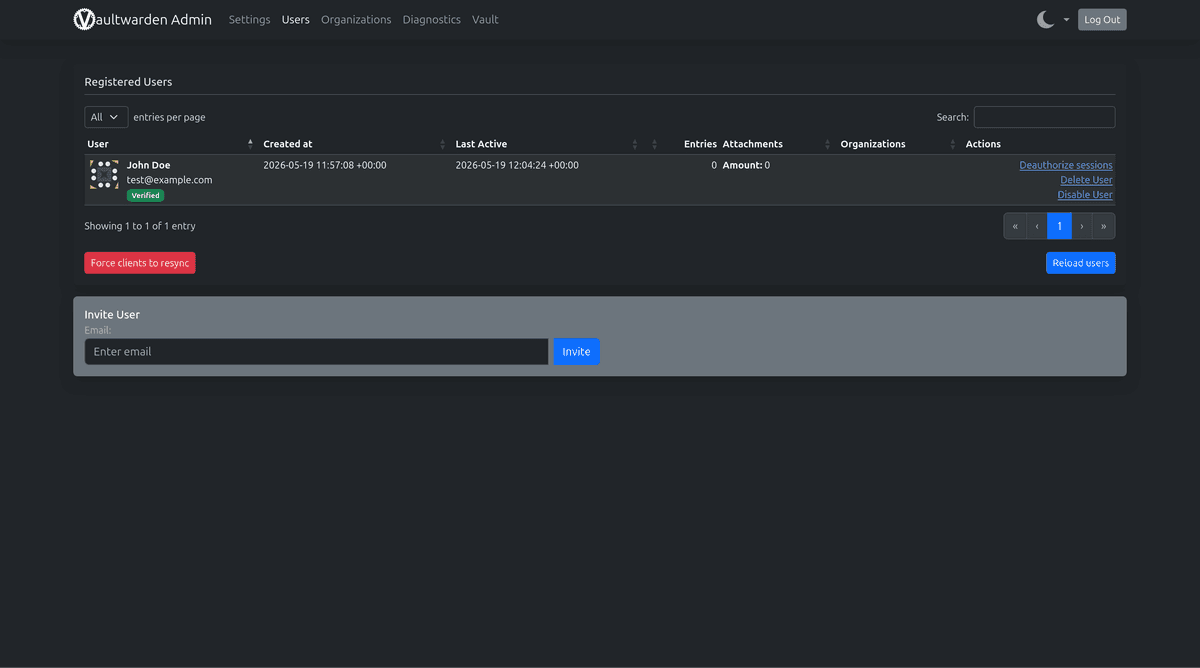
The admin panel is available at /admin. Access requires the ADMIN_TOKEN set in the environment. From there you can:
- View and manage registered users
- Invite or delete users
- Disable open signups once your accounts are created
- Check diagnostics and server info
- Configure SMTP for email invitations and password reset
Disabling signups after the initial setup is recommended for any instance exposed to the internet.
Using with the browser extension or mobile app
In the Bitwarden browser extension or mobile app, go to Settings > Server URL and enter your domain (for example https://889d-2a0c-16c3-500-312-00-7a5d.ngrok-free.app). Log in with the account you created on the web interface. Sync, autofill, and 2FA storage work the same as with the official Bitwarden cloud, because the API is fully compatible.