I wanted to see how the new GPT Images 2 model fits into a web development workflow. The interesting part is not the art: it is using generated mockups as a visual spec, then handing them to a coding agent to turn into real markup. This article covers how to write image prompts, then two practical examples where the generated UI becomes working HTML and CSS.
Writing prompts for image generation
Good prompts move from general to specific. Each layer narrows the output. Skip one and the model fills the gap with its own assumptions.
Structure
[Image type] -> [Style] -> [Subject] -> [Details] -> [Technical specs]- Image type: what kind of output you want.
product photo,editorial illustration,concept art
- Style: the visual language.
watercolor,flat vector,photorealistic,80s retro poster
- Subject: the main content.
a coffee shop interior,a running shoe,a futuristic cityscape
- Details: lighting, mood, composition.
warm lighting,shallow depth of field,overhead angle
- Technical specs: format and quality.
4:3 ratio,8K,studio lighting,high resolution
Examples
Product photo:
Product photo of a matte black water bottle, placed on concrete surface,
soft diffused lighting, white background, commercial photography, high resolution
Illustration:
Editorial illustration of a person working from home, flat vector style,
warm muted colors, afternoon light through a window, minimal design, 16:9
App icon:
Meditation app icon, soft gradient from lavender to deep blue,
simple lotus silhouette, rounded corners, glassmorphism, iOS format
Common mistakes
- Vague words:
beautiful,cool,nicemean nothing. Usecinematic,symmetrical,golden hour lightinginstead.
- Conflicting styles: pick one direction. Mixing
minimalistandmaximalistin the same prompt gives unpredictable results.
- No negative prompt: always add one.
negative: blurry, low quality, watermark, distorted
Reference
| Goal | Keywords |
|---|---|
| Realism | photorealistic, DSLR, natural lighting |
| Illustration | vector art, hand-drawn, ink illustration |
| UI design | Dribbble shot, Figma style, high fidelity |
| Quality | highly detailed, sharp focus, 8K |
Save prompts that worked. A personal library of tested formulas beats any guide.
Example 1: analytics dashboard
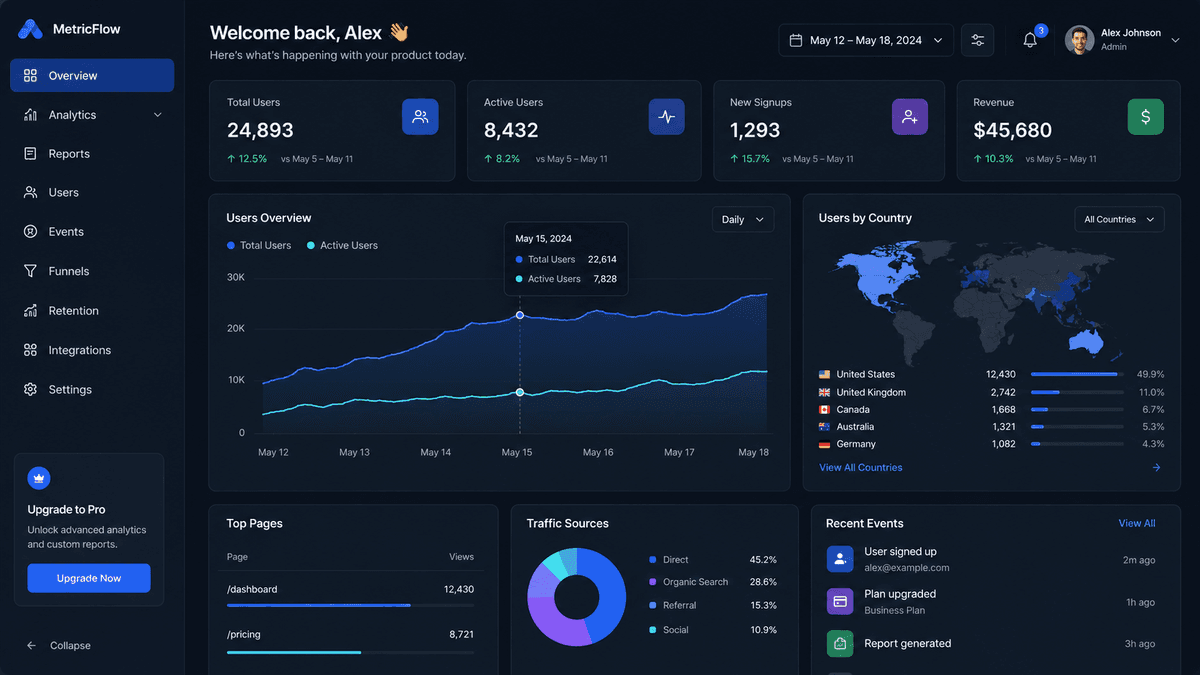
The first prompt targets a full desktop UI rather than an illustration. Notice how the layout is described explicitly: sidebar, top bar, chart area. The model cannot infer structure you do not state.
UI mockup of a SaaS analytics dashboard, modern minimal flat design,
dark theme with blue accents, sidebar navigation on the left,
top bar with user avatar, main area with line charts and KPI cards,
desktop browser viewport, high fidelity, Dribbble style,
clean typography, 16:9 aspect ratio
The model produced this mockup:
I then passed the image to Claude Code and asked it to build the page as static HTML and CSS. The rendered result:
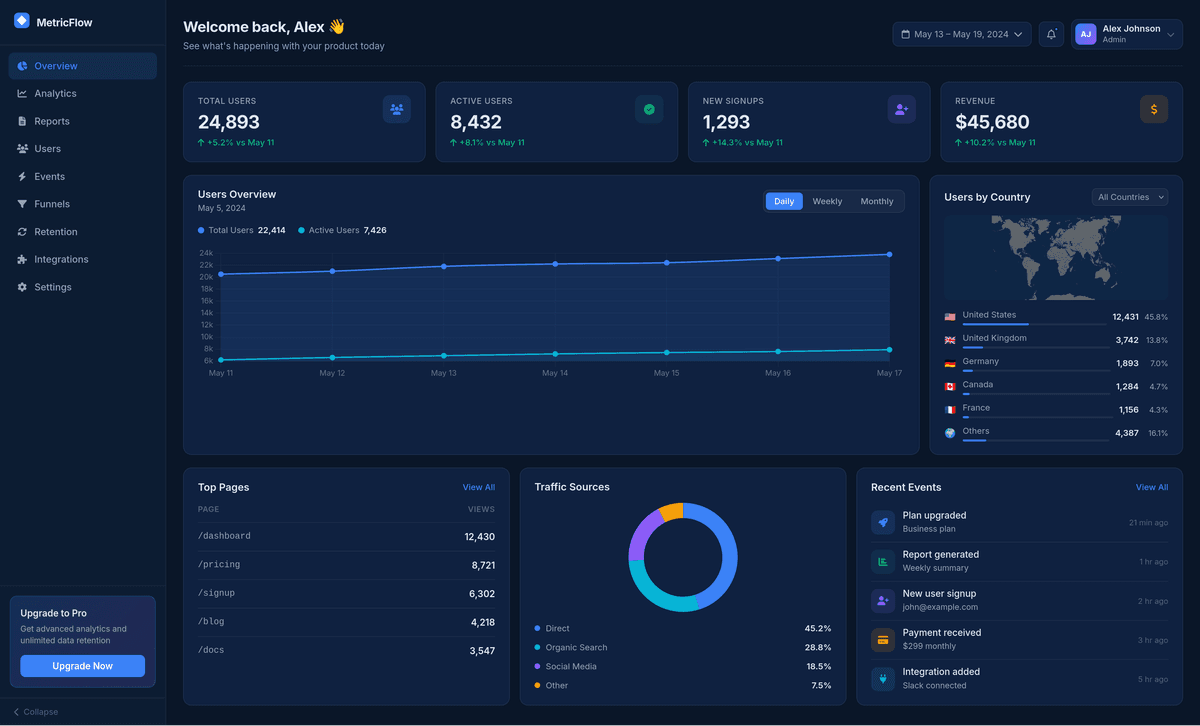
The layout, color palette, KPI cards, chart placement, and country list all carried over. The image acts as a precise visual spec, which removes the back and forth of describing a design in words.
Example 2: mobile audiobook app
The same approach works for mobile. A shorter prompt is enough when the screen is simpler.
UI mockup of a mobile application for audio books, glassmorphism,
light theme, bottom navigation, audio player and list of chapters
on the screen. High fidelity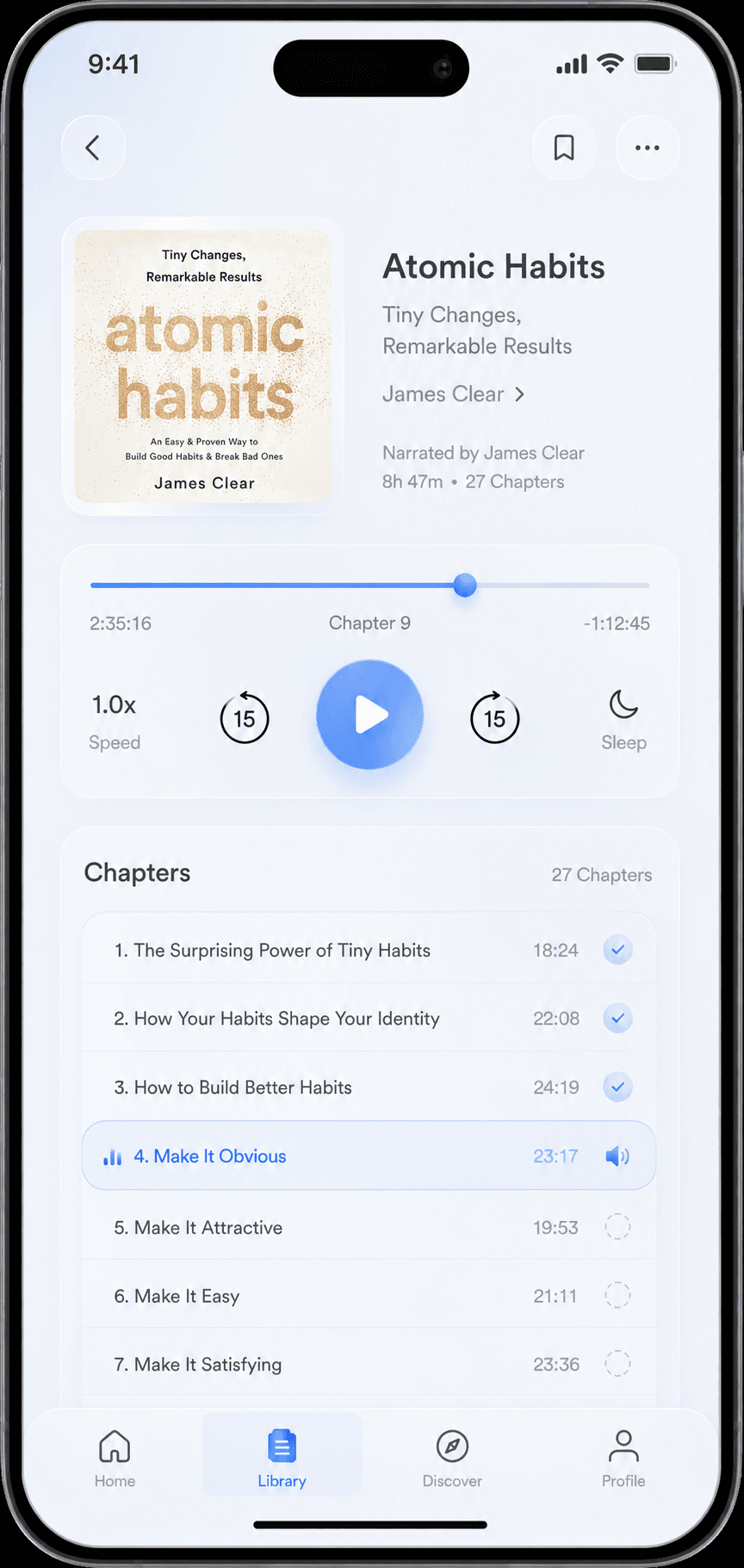
The output respects the glassmorphism style, the light theme, the player controls, and the chapter list, all in a realistic phone frame.
Takeaways
GPT Images 2 is useful for web development as a fast way to produce a concrete visual target. Describe the layout explicitly, generate the mockup, then let a coding agent translate pixels into markup. The result is closer to the intent than describing a design in prose, and far faster than building a mockup by hand.